# Scanned Folders list only shows C: drive
**URL:** https://community.bildhuus.com/t/scanned-folders-list-only-shows-c-drive/699
**Category:** Bug Reports
**Created:** [19 November 2025 08:44 UTC](https://community.bildhuus.com/t/scanned-folders-list-only-shows-c-drive/699 "2025-11-19T08:44:54Z")
**Posts on this page:** 2
**Page:** 1
### Author:  [@AMDphreak](https://community.bildhuus.com/u/AMDphreak)
#### Post date: [19 November 2025 08:44 UTC](https://community.bildhuus.com/t/scanned-folders-list-only-shows-c-drive/699/1 "2025-11-19T08:44:54Z")
## Observed behavior
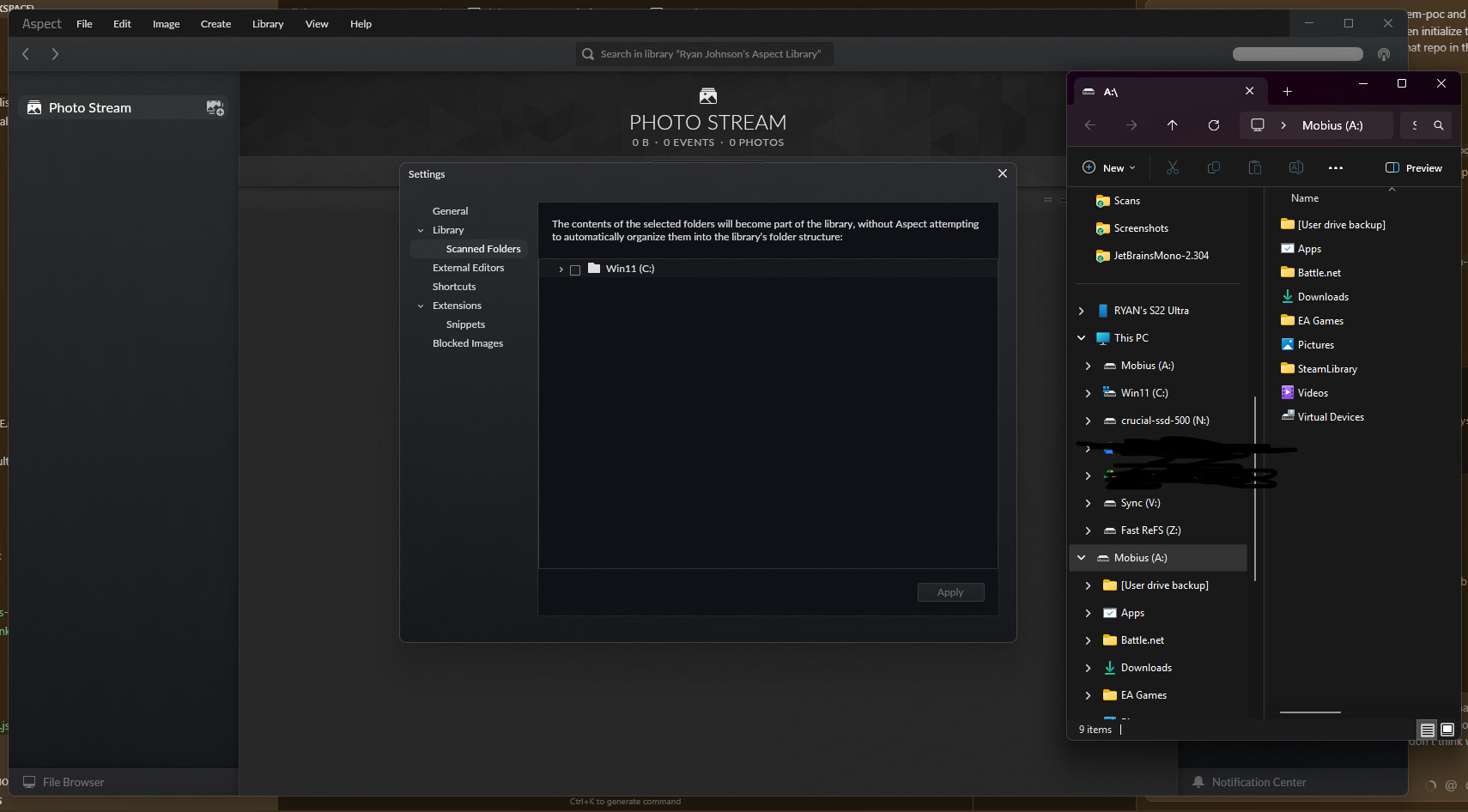
Scanned Folders setting only lets me select folders within the C: drive. I have all my photos on another drive, so this app is impossible to use.
## Expected behavior
It lets me select folders on other drives.
## Steps required to reproduce
1. Install app. Don’t select folders during setup process.
## Operating system/Hardware used
Win11
---
### Author:  [@Soenke](https://community.bildhuus.com/u/Soenke)
#### Post date: [20 November 2025 14:41 UTC](https://community.bildhuus.com/t/scanned-folders-list-only-shows-c-drive/699/2 "2025-11-20T14:41:37Z")
We currently have this deliberately limited so that the photos of a certain library instance must be on the same drive as the library folder itself. So in the most simple case, you would have to instead create the library folder on the other drive where the photos are stored.
When multiple drives are involved, each drive gets its own instance of the same library (basically a synchronized copy of the library catalog) and each instance then has its own set of scanned folders, each on the same respective drive.
When setting it up like this, it is important to first set the storage settings of the existing library instance to _MANUAL SELECTION_ by going to the synchronization pane on the right, clicking the three dots next to the entry that says “Currently active”, choosing _Configure…_ and changing the storage more accordingly.
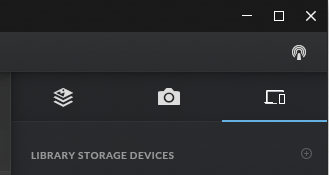
After this is done, you can add the second drive by clicking the ⊕ button (or _Library_ → _Add New Device…_) and choosing _External Hard Drive or NAS_. You’d then choose a directory to use as the library folder on that drive and then also set the storage settings to _MANUAL SELECTION_. Finally, after clicking _Synchronize Now_, the new library instance should be set up and ready to use.
The new instance is listed under _Library_ → _Switch Active Library Instance_. If you now switch to it and choose _File_ → _Add Folder(s) to Library…_, you should be able to choose folders from that drive.
We are planning to streamline this process into a more seamless experience where you choose your folders and the application will then automatically prompt you to choose additional library folders as needed.
The advantage of this approach is in scenarios where some or all of the photos are stored on an external drive or on a NAS – you can for example take the drive, plug it into another computer and you will be able to see the complete library and work with it, despite only a subset of the photos being present. Plugging it back to the main computer will then automatically synchronize any changes made.