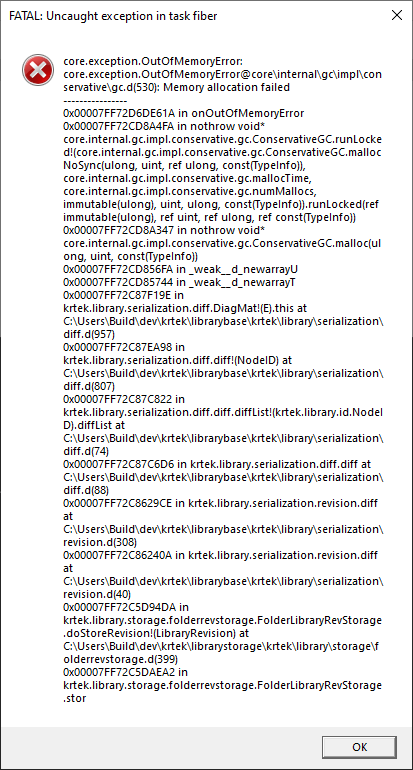
I’ve decided to move the checksum computation to the “analyzing images” phase, just like it’s done for the initial scanned folder that is set up during library creation - this greatly speeds up the “applying changes” process and allows to start working with the images earlier (the disadvantage is that duplicate detection won’t work until the images have been analyzed)
The fact that the total and current number of files processed actually turned out to be a bug introduced recently (the last path during the scanning phase just stayed visible during the “applying changes” phase)
There was an issue with images not becoming visible in the workspace when closing the application before the process had finished and a related issue caused the RAW/JPEG preference sometimes not being respected and images being shown in the workspace too early
With the upcoming release, the library will be stored every five minutes during the “applying changes” process, so that progress isn’t lost in case the application gets terminated
Together, these changes now result in a much quicker file synchronization run. The image analysis process that comes afterwards can safely run in the background while starting to work with the library, image loading will just be noticeably slower during that time.
If everything goes according to plan, we’ll release this as part of 1.0.0-rc.47 tomorrow.
This is super, and I think it will improve the overall working with photos better.
The duplicate could be a separate function to activate at later point,.. when I need it.
I will follow for update, so when rc.47 is ready I’ll download it and try direct.
Okay, this seems to confirm my earlier suspicion that the metadata or thumbnail cache is somehow not accessible. You could verify this by searching for this text in the log file:
Failed to initialize disk image cache, running in RAM-only mode
The lines before that should give a hint about what exactly failed.
Unfortunately I forgot to write down that I wanted to make this a user visible error, but I’ll do that today.
If this turns out to be the true cause, it would be interesting to see why it can’t be accessed (for example because permissions are off for some reason) to hopefully get closer to the root cause.
Edit: Actually, looking at the code, there should already be a message box coming up that says “Cache could not be loaded”, so apparently this scenario is not the case after all. If you could send me maybe the first 1000 lines of the current log file, I would have a look for any other error that might give a clue.
Yes, I did find that line in;
Failed to initialize disk image cache, running in RAM-only mode
aspect-log-crash-20260221T182038.sdl (something like this, but the file took 1Gb, so removed it)
And I check the NAS which the photos + the library is stored on.
You are correct, it had problems writing to the NAS drive (permissions).
BUT I did not get any box - could be that the software could check this at startup that the permissions of reading/writing is ok ? before the applications starts doing anything else…
(but I know, my bad that the NAS drive had a write permission error )
That is fixed now, and I know that the users I’m accessing with is able to create/edit files on the NAS.
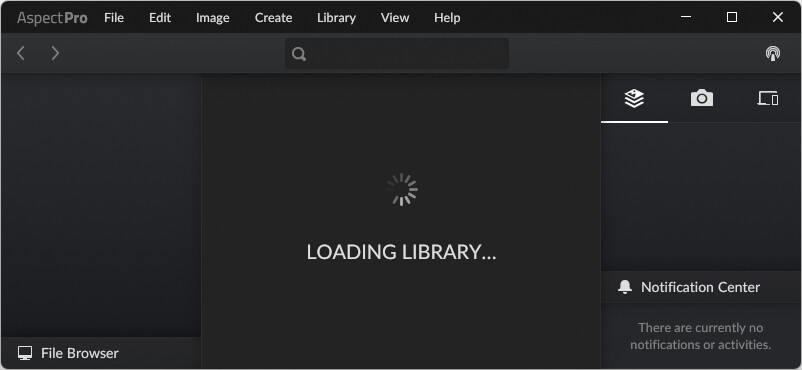
I’m getting photos up now.. but still keeps synchronizing..
Trying to close the window seems to never close. Storing Library..
I will wait… and let work, and see if closes. It never closed.. (atleast waited several hours).
Terminated the process. Startet up again and this keeps going..
Okay, I think I found the issue – the dialog box only appears after the missing metadata has been loaded, so that it probably just has taken too long for you to see it. I’ve moved it to an earlier point in the loading process now. Also, the library load will now just fail in that case, as it really doesn’t add any value to let it run in RAM-only mode and probably just leads to wasted time that would be better spent resolving the issue.
This is strange, I tested this a lot of times at different stages and for me it always cancels the “Synchronizing File System” and closes as expected. One time it seemed to be briefly stuck for a few seconds in a large folder, but usually is canceled more or less instantly.
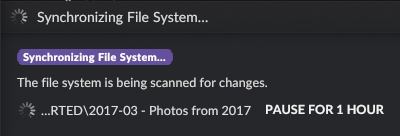
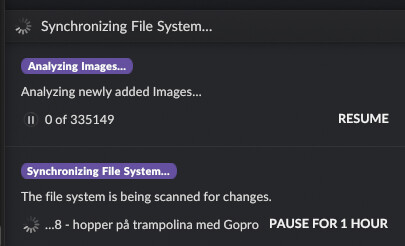
To get better idea of how the times compare, do you know how long the “The file system is being scanned for changes” phase takes for you? I’m getting over an hour for a folder with a total of 200k photos (via an SMB share on a Linux server and a GbE network connection). With Windows Defender disabled, it took about 28 minutes.
After letting the full synchronization run through completely, the next run (Defender still disabled) then just takes a second or so.
It has counted all the files 350k+ and now this windows is there. I guess it took 8h+.
But I’m using my NAS to all different things so.. AND i have alot of Gopro and MTS video 1Gb-4Gb files.. I dont know if those are counted and viewable?
My worries is that after this sync will I be able to quit and it does not start over again? (counting)
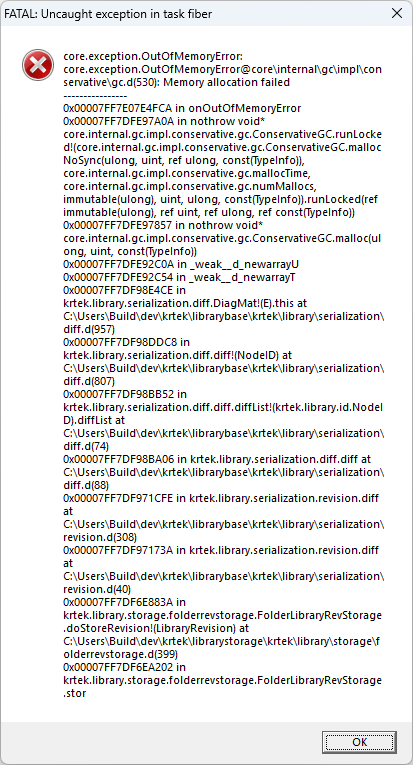
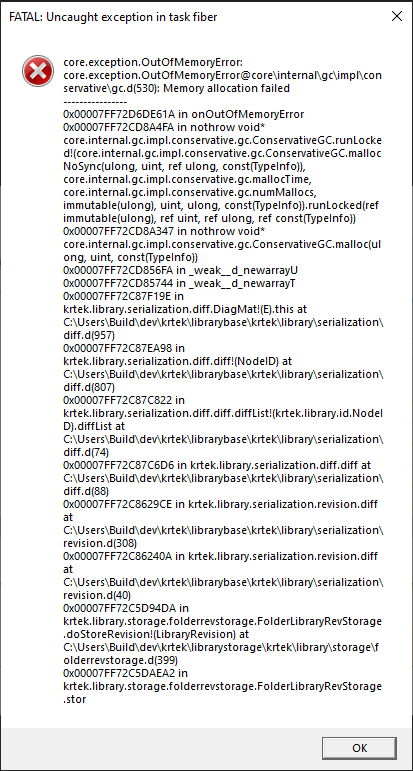
The failure is again an out-of-memory error – unfortunately, I couldn’t really reproduce this with my test setup, although I suspect it is related to a certain kind of image or video format. I’ve put an entry in my TODO list to write a test that checks for memory leaks with any image and video format that we have available. Hopefully that will catch something.
Apart from the error itself, what might be more interesting is that it still looks like there is an issue with the image cache. The call stack implies that it had to go and read metadata directly from the file, while normally all images within the library should already have their metadata stored in the cache when relations between files are determined (which is what was going on at the time of the crash).
Can you still see the read-only mode error in the log maybe?
I’ve done some testing regarding the out-of-memory issue and discovered two problematic places:
Panasonic RW2 RAWs leak about 110 KB of RAM each time metadata is read from them
Reading metadata from a video file leaks around 150 KB (only on Windows/Linux) – this will be fixed for most video files in the next release, but there are some particular video files that still leak about 65 KB
Both of the remaining leaks are happening in external library code, but I’ll see if I can do something about the RW2 files.
There still must be something going on that I can’t reproduce with my test setting. I was getting a peak memory usage of 2,5GB or so after scanning 200k images, so even if that were growing linearly with the number of files, there should still be plenty of room with 400k images.
By the way, did you still get the “some metadata is missing” at startup? Otherwise, do you have a rough idea where the most time was spent during the last run before the OutOfMemory message came up?
Regarding the memory leak that I found, do you have a large enough number of video files that could explain the high memory usage on that basis, let’s say more than about 60k individual files?
Okey…so every day the app is gone, and I have to restart it. If i try to stop the application on picture 1078.. and start it up, it starts from 0 anyway.
And every morning I startup the application and it does the same.. runs and then fails and closed in the end of the night (at some point).
Building a powershell script to automatically restart the process does not help as it does not remember where it was when it shutdown.
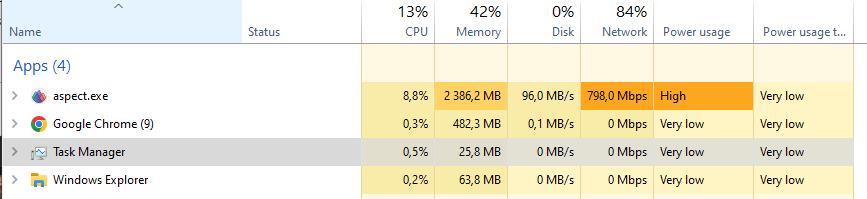
Even though only have your webpage up, and aspect.exe is running..
Checking the log file is see:
line “Failed to write column store format file to disk: Attempting to rename file Z:\Stig’s Aspect Library\.cache/thumbnails_1024\format.json.tmp to Z:\Stig’s Aspect Library\.cache/thumbnails_1024\format.json: Access is denied.” level=“error” time=2026/03/08 09:41:13.3763664-UTC file=“columnstore.d” line=175 thread=“Main” threadID=776945535 fiberID=618006555;
But this file is totally writable.. I was able to create a new directory and file in this folder.
***
Also found that it does not like the folder structure here:
($1FGTL~M) But that is understandable, cause windows did not allow me to open the file that was in this folder. Solution was to move those files and remove the “$1FGTL~M” folder.
line “Failed to determine file check sum of file:///Z:/MyPictures/slettes2/New%20folder/sorted/2002-02/$1FGTL~M/P2010001%20-%202002-02-01%20-%2012-26-23%20-%202048x1536.JPG: Could not open file for weak checksum computation at file:///Z:/MyPictures/slettes2/New%20folder/sorted/2002-02/$1FGTL~M/P2010001%20-%202002-02-01%20-%2012-26-23%20-%202048x1536.JPG” level=“error” time=2026/03/08 09:49:55.4751564-UTC file=“changedetector.d” line=952 thread=“Main” threadID=776945535 fiberID=612656155;
Just trying to quit the application gives me this. I have other photo programs that runs, looking at the same NAS share and browsing folders..
I have testet Aspect application now on two different computers and behaves the same. One is a Win10 and other is Win11.
If its possible to do even more extensive debuggin I would like to try that too .
Okay, so it looks like the cache can be opened successfully, but then fails to write changes later. This is a bit strange, because it should already attempt to write the same “format.json” file during the opening process, but that apparently did not fail. I could see two possible explanations for this:
Another process might open and lock the file temporarily, which is something that can frequently be an issue on Windows
It could still be a permission issue, particularly if newly created files do not receive the same initial permissions as the existing files, but then it should fail while opening the cache during the next run
What I would recommend in any case is to try to delete the .cache/thumbnails_1024 folder completely and then run the application again. If the behavior then stays the same, it would strongly point towards explanation 1.
I will add some mitigation code for the next release, which will retry the rename operation a few times before actually giving up and throwing an error.
I have tried deleting .cache/thumbnails_1024. Did not help.
But there is something fundemental wrong with my setup, and both my machines has this issue!!??
There is no CPU or memory peaking. There is no other applications running other than windows explorer, task manager, chrome (this webpage) and Aspect.exe.
I can start the application, and try to close it some minutes later again and then I get this error message, it happens every time:
Okay, then I’d say that anything permission related can at least be ruled out. The most notorious process for interfering with newly created files has actually been explorer.exe in my experience, so that is still a possibility. I’m unsure about others, such as Defender and SearchIndexer. I’ll aim for a release tomorrow, so we should hopefully know more then.
This is interesting, I initially discounted the place where the out-of-memory error occurs as probably random, but it looks like this may actually be hitting an inefficient path in the diff algorithm that compares lists of files (very likely the contents of the scanned folder in this case). I’ve implemented a fallback to a different algorithm for such cases now and expect this to be gone with the next release.
 )
)

 .
.