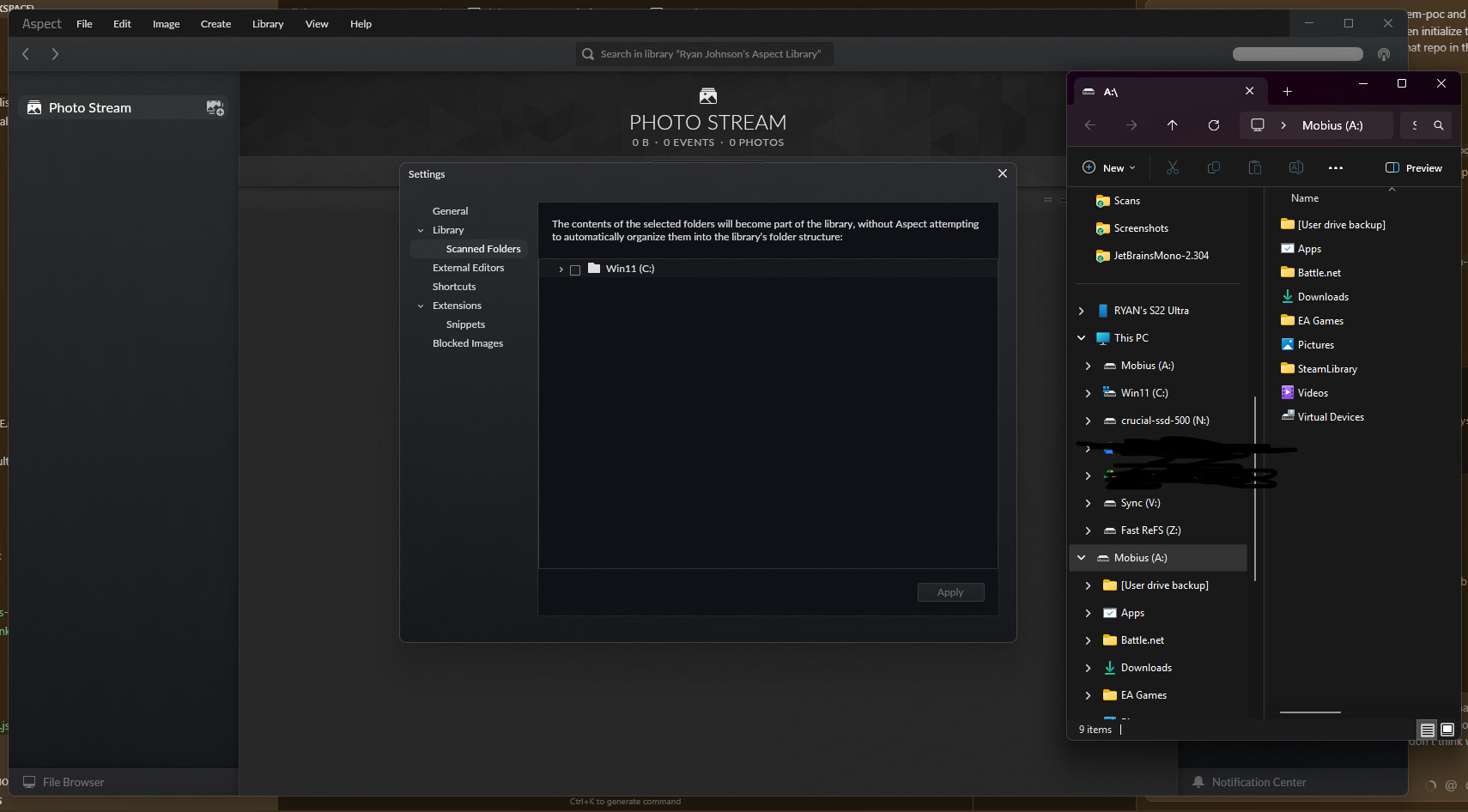
We currently have this deliberately limited so that the photos of a certain library instance must be on the same drive as the library folder itself. So in the most simple case, you would have to instead create the library folder on the other drive where the photos are stored.
When multiple drives are involved, each drive gets its own instance of the same library (basically a synchronized copy of the library catalog) and each instance then has its own set of scanned folders, each on the same respective drive.
When setting it up like this, it is important to first set the storage settings of the existing library instance to MANUAL SELECTION by going to the synchronization pane on the right, clicking the three dots next to the entry that says “Currently active”, choosing Configure… and changing the storage more accordingly.
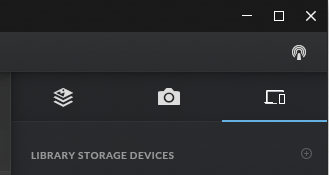
After this is done, you can add the second drive by clicking the ⊕ button (or Library → Add New Device…) and choosing External Hard Drive or NAS. You’d then choose a directory to use as the library folder on that drive and then also set the storage settings to MANUAL SELECTION. Finally, after clicking Synchronize Now, the new library instance should be set up and ready to use.
The new instance is listed under Library → Switch Active Library Instance. If you now switch to it and choose File → Add Folder(s) to Library…, you should be able to choose folders from that drive.
We are planning to streamline this process into a more seamless experience where you choose your folders and the application will then automatically prompt you to choose additional library folders as needed.
The advantage of this approach is in scenarios where some or all of the photos are stored on an external drive or on a NAS – you can for example take the drive, plug it into another computer and you will be able to see the complete library and work with it, despite only a subset of the photos being present. Plugging it back to the main computer will then automatically synchronize any changes made.